Create, rename, and reorder two layers.
Teacher shows one slow example.
TEACHER QUICK PLAN · 15–25 MINUTES
Shape and Layer: Grade 1
Focus: Use simple digital shapes, layers, and undo to build a clear image.
Start: Make a 60-second test in the first box. Do not erase it—use it as evidence.
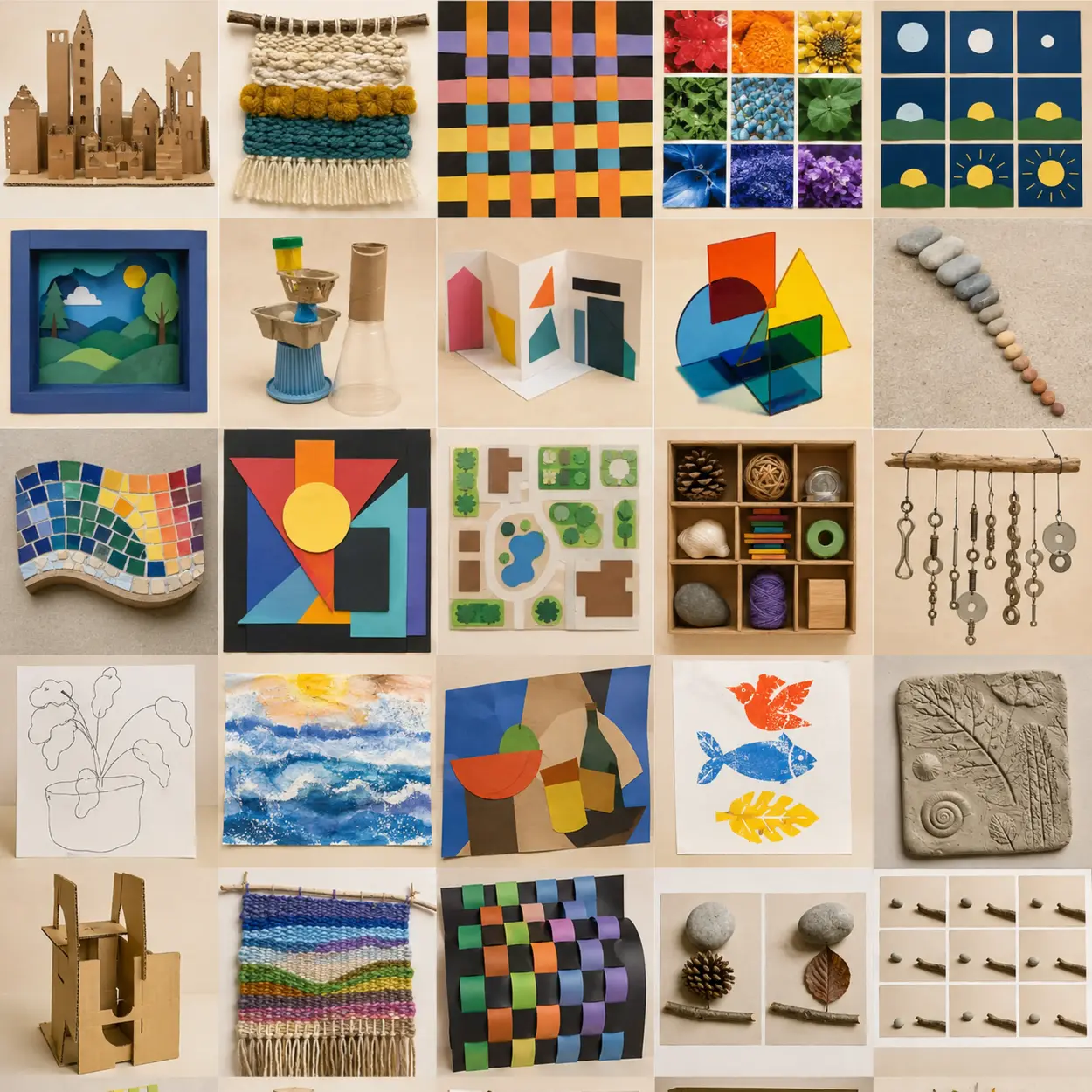 SUCCESSFUL SKILL IN A PROJECT
SHOW STUDENTS BEFORE THEY BEGIN
See where this skill can go
This Grade 1 example uses digital art inside a finished project. Notice the technique, then cover the image so students invent their own subject.
OPEN THE MATCHING PROJECT: Photographic Color Scavenger-Hunt Grid ↗VISUAL HOW-TO · READ LEFT TO RIGHT
Watch → Test → Compare → Improve
Change layer: create / name / reorder.
Keep every first attempt.Look for parts can be edited separately.
Circle or point to evidence.Repeat the strongest choice and change one detail on purpose.
Explain what became clearer.THE FINISHED SKILL TARGET
What students should be able to do
Use simple digital shapes, layers, and undo to build a clear image. Students should show at least two tests and one visibly improved attempt—not a finished artwork.
Materials
- tablet or computer
- simple drawing app
- stylus or mouse
- printed worksheet or sketch paper
Demonstrate these actions
- Create, rename, and reorder two layers.
- Build an image from large shapes before details.
- Use undo to study a choice, not to chase perfection.
20-minute teaching sequence
- 0–3 min · Name the skill — Tell students: “Today we are practicing digital art, not making a finished masterpiece.”
- 3–7 min · Teacher demonstration — Show the three actions listed below. Keep the sample unfinished so students focus on technique rather than copying.
- 7–10 min · First test — Students complete Test 1 while changing one variable only.
- 10–14 min · Compare — Students point to, circle, or label what worked and decide what to change.
- 14–20 min · Improved try — Students repeat the useful choice in the larger box and intentionally improve it.
- Final 3 min · Check + reflect — Use the checklist, complete the sentence, and clean materials.
Useful teacher language
- “Show me the part where you practiced digital art.”
- “What did you change between your first and second attempt?”
- “Point to the choice you want to use again.”
Common problems and quick fixes
- Student starts with tiny details — zoom out and place three large shapes.
- Layers become confusing — name them by job and hide one at a time.
SUPPORT MATERIAL · PROJECT OR DISPLAY THIS CHART
Digital Art understanding chart
CONTROLTRY THISLOOK FOR
Layercreate / name / reorderparts can be edited separately
Scalezoom in / zoom outdetails support the whole image
Revisionduplicate / change / comparea reasoned choice between versions
WORDS TO USElayeropacityselectionresolution
MATCHED EDUCATIONAL EXAMPLE
See the skill in a trusted collection
Preview this teacher resource, select one age-appropriate example, and ask students to identify the same controls shown in the chart.
Move from practice to a project
After this practice, students are ready to use the strongest digital art technique in a full lesson while making their own subject and composition choices.
PRINTABLE STUDENT PAGEPrint only the worksheet section below.
STUDENT SKILL-BUILDING WORKSHEET
Shape and Layer: Grade 1
Follow the Studio Guide
- Set up the worksheet and materials for digital art practice.
- Use simple digital shapes, layers, and undo to build a clear image.
- Create a practice row, label one discovery, and improve one attempt.
- Save or screenshot the strongest version and draw a small copy in the worksheet box.
- Clean the workspace, then complete the reflection sentence.
Success check
Reflection
The change that helped most was… because…
Use browser Print / Save as PDF